- Year: 2025
- Category: Product
- Benefits: Smoother orchestration, Hands-off execution, Reliable timing
- YouTube share link: https://youtube.com/embed/Hg4M5w9MSzo
- Documentation link: https://hub.synerise.com/docs/automation/workflow-scheduler/
- Security & Performance: No
- Featured?: No
- Quarter only: 8b7b86fc7f6cc11ad9a7ee1a1421e700
- Quarter: a20791dca80d96e92adcda5348dfdaca
- Module: 4c6698dca829ee8a0fcb167b62e6d5d0
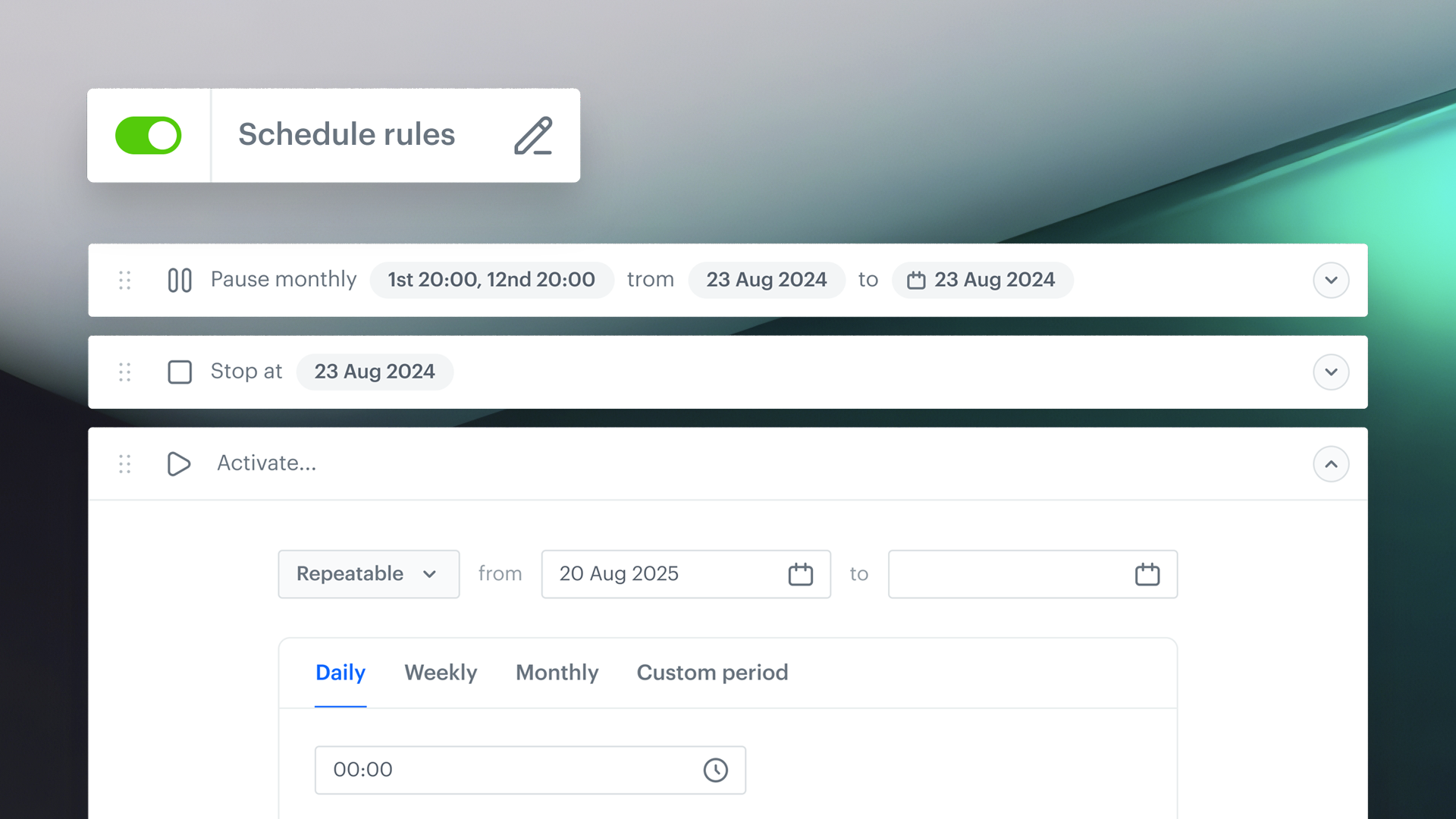
Managing multiple campaigns or planning a weekend launch? Now you don’t need to activate all your workflows manually — meet Workflow Scheduler, a new feature that lets you schedule status changes for your workflows ahead of time.
Set when a workflow should go live, pause, or stop, and Synerise will handle the timing for you.
How does it work
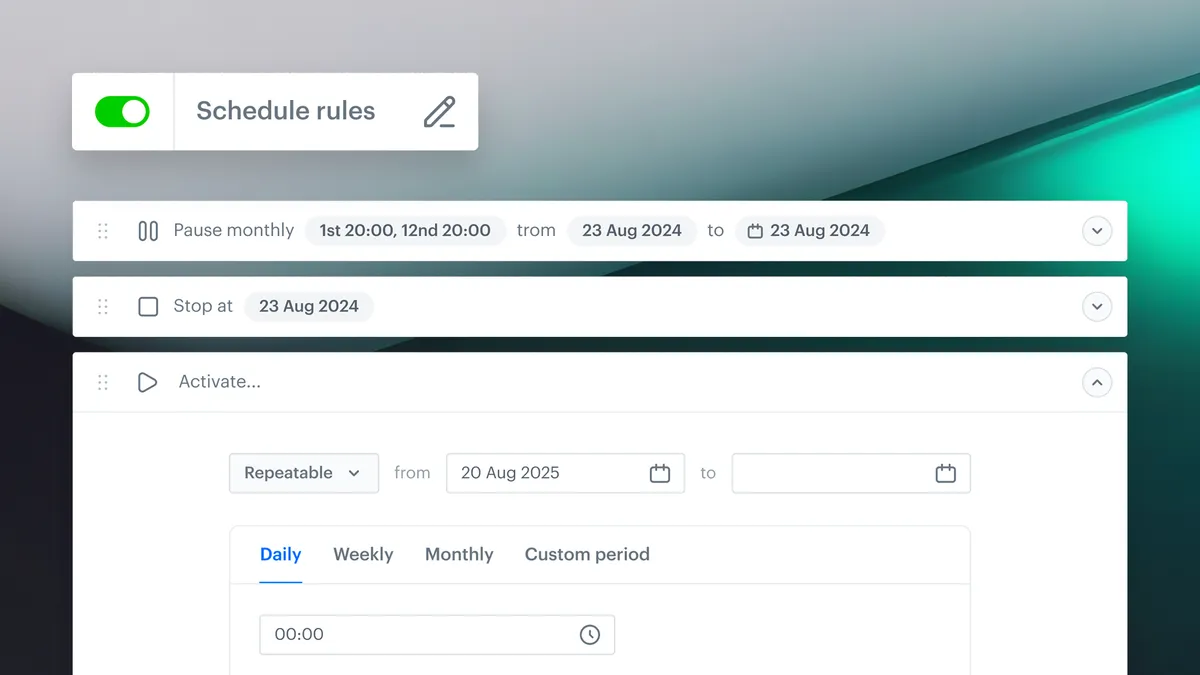
- Create rules – Define exact dates and times for changing workflow statuses: Active, Pause, or Stop
- Plan campaign orchestration – Perfect for timed launches, weekend promos, or seasonal pauses
- Edit anytime – Add, remove or update rules as needed
Workflow statuses explained
With the introduction of scheduling, we've added a new status — Pending — to the existing workflow lifecycle:
- Pending – Workflow is waiting for its scheduled activation
- Active – The workflow is live and executes actions when triggered
- Paused – Temporarily stops; processes and customers resume from where they left off when reactivated
- Stopped – Workflow is ended permanently; cannot be resumed, but can be duplicated and reactivated as a new version
How to set it up
- Go to Automation > Workflows > Create new
- Add the first node to unlock the Define scheduler option
- Click Add rule and pick a status and date
- Add as many rules as you need
- Use the Statuses tab to review the schedule
- On activation, choose how the workflow should behave: Run now, Follow schedule - or both.
Workflow Scheduler helps you take full control of when workflows run — so you can focus on strategy, not manual execution.