TL;DR
Notes in Automation Workflows is a feature in Synerise Automation Hub that lets users attach written annotations to individual nodes or place them anywhere on the workflow canvas. Each note is collected in a dedicated sidebar, Notes Collector, and links back to its source position on the canvas. Context of complex or shared workflows now has a single location for what previously lived in chat threads, external documents, or the one person who built the workflow.
When automation workflows outlast the people who built them, where should the reasoning live?
We've introduced Notes in Automation Workflows in Synerise Automation Hub. The feature is available now across all workspaces and requires no configuration. Notes are visible to all users who have the appropriate permissions.
What this shifts in practice
- Workflow ownership transfers without losing context. The next owner reads the note attached to the exact step where the decision was made, instead of reconstructing it from chat threads or onboarding documents.
- Audit and review move faster. When someone questions the logic behind a workflow, the why is written next to the step instead of buried in a meeting recording from six months ago.
- Onboarding and handover stop depending on a single person. Someone taking over a workflow can understand its intent and edge cases directly from the canvas.
What are Notes in Automation Workflows
Notes in Automation Workflows is a capability in Synerise Automation Hub that lets users attach notes directly to the workflow they describe. The annotations live inside the canvas, not in a separate documentation tool, so the context stays with the logic it explains.
Key Capabilities
Add notes to workflows
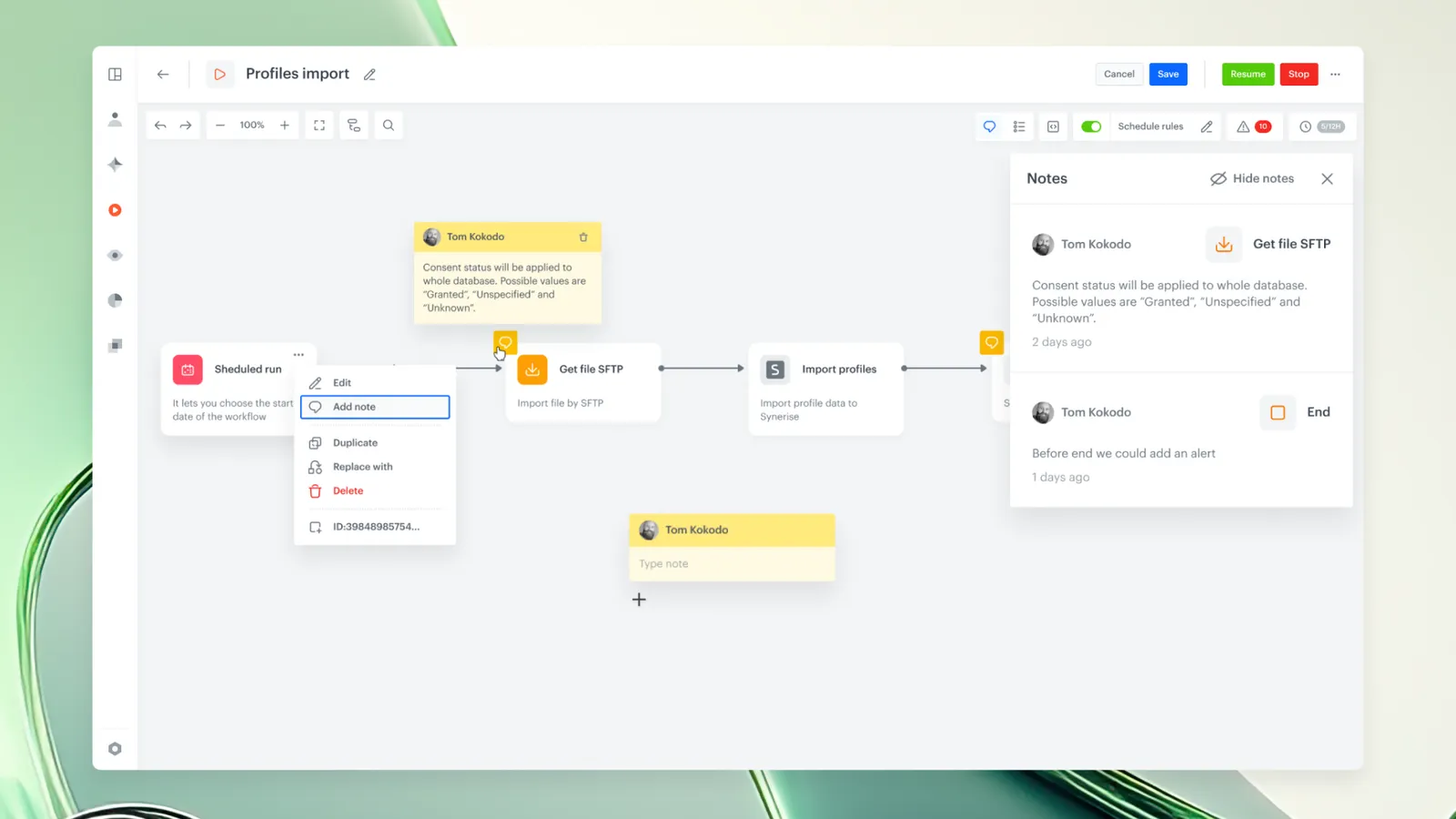
Attach a note to any individual node or post anywhere on the workflow canvas to:
- describe structure,
- include reminders or instructions,
- explain logic or expected behavior,
- capture decisions, dependencies, or assumptions.
Notes Collector
Every note in a workflow appears in a sidebar panel showing:
- author,
- creation date,
- a clickable link that centers the canvas on the relevant position.
Toggle visibility of notes
Notes and the Notes Collector can be shown or hidden, so:
- users can switch between a clean workspace and a full contextual view,
- this supports both focused editing and documentation review.
Authors
Release note contributors: Magdalena Góralska (Product Evangelist), Kamil Gaczoł (Senior Product Manager).
Notes in Automation Workflows are available now in Synerise Automation Hub
FAQ
Can Notes in Automation Workflows replace our external workflow documentation?
It can reduce reliance on external documents for workflow-level context. Notes work best as the layer that keeps operational decisions close to the logic they describe. They are not a standalone documentation system.
Can a note be added without opening a node?
Yes. Notes can be created directly from the workflow canvas using the note icon, without entering node settings. They can also be placed as standalone canvas annotations with no node attached.
How do I navigate to a specific workflow step from a note?
Clicking a note in the Notes Collector centers the canvas on the node it's attached to. For standalone canvas notes, the click centers on their canvas position.
Can I see who created a note and when?
Yes. Each entry in the Notes Collector shows the author name and creation date alongside the annotation text.
Can a Synerise AI Agent use workflow notes?
Yes. When you ask a Synerise AI Agent what a workflow does, it draws on the notes attached to that workflow as context. Notes become structured, machine-readable documentation, not just a record for humans reviewing the canvas.
Key Facts
| Attribute | Value |
|---|---|
| Feature | Notes in Automation Workflows |
| Module | Synerise Automation Hub |
| Purpose | Attach contextual annotations to workflow nodes and canvas to document logic and decisions |
| Scope | Workflow-level |
| Interaction | Canvas-level and node-level note creation |
| Navigation | Notes Collector sidebar with clickable notes linked back to nodes |
| Visibility | Visible to all users with appropriate permissions |
| Setup required | None |