TL;DR
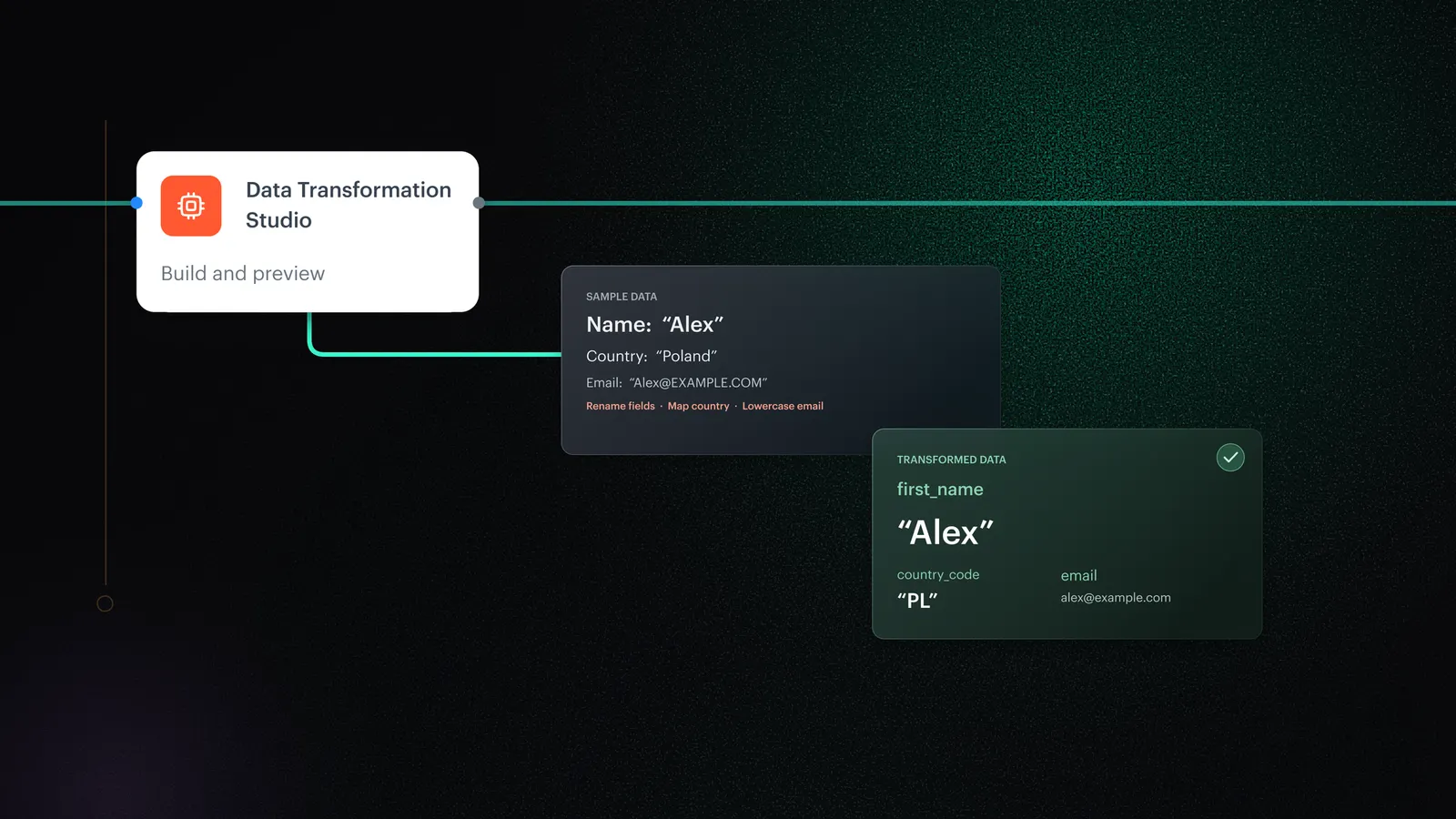
Data Transformation Studio is the redesigned Data Transformation in Synerise Automation Hub, now built directly into automation workflows. The redesign addresses most of what users asked for, so working with data is faster, more efficient and more intuitive. Sample data comes from the data source node in one click, the transformation goal is suggested from the workflow context, and familiar column and value transformations have a new design. Rules can still be saved to a shared library for reuse, and rules you've already built keep working.
Where should data prep live when your automation workflows carry more than marketing data?
Data prep belongs inside the automation workflow, next to everything else it already moves. That's why we've redesigned Data Transformation from the ground up and built it into automation workflows in Synerise Automation Hub as Data Transformation Studio. It's available across every workspace with no setup, and transformation rules you've already built stay available and in use.
What is Data Transformation Studio
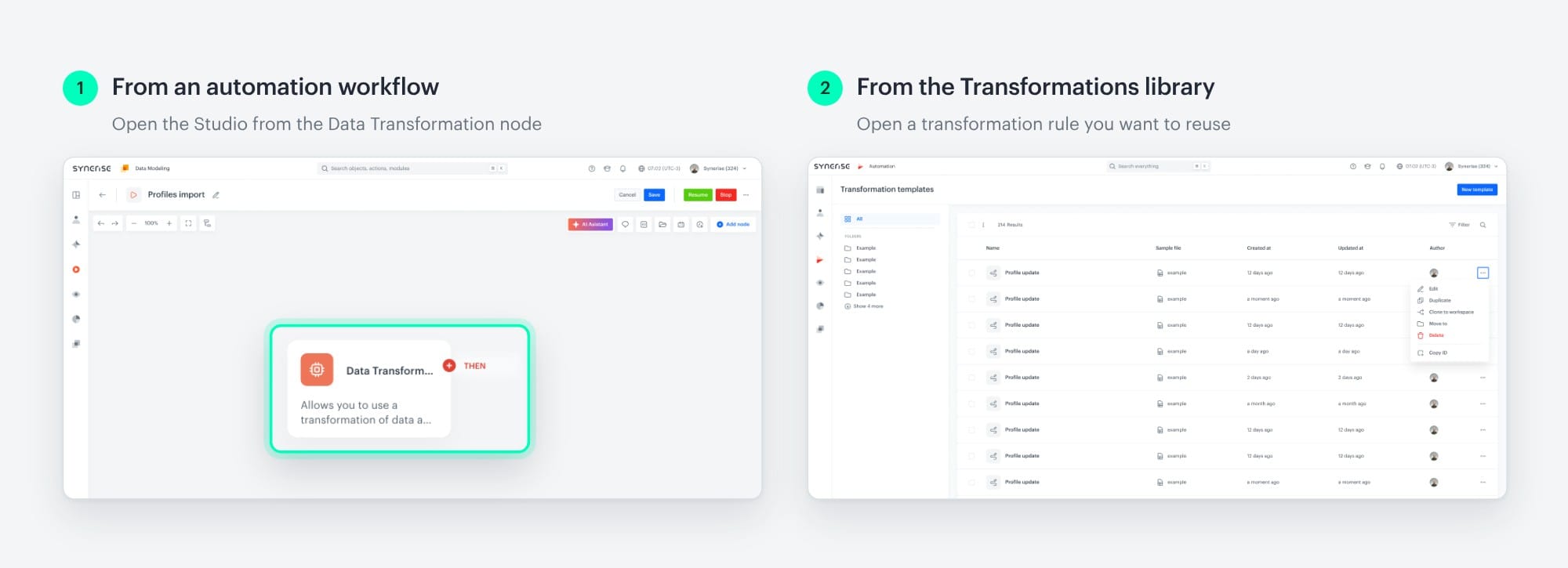
Data Transformation Studio is the new version of Data Transformation, the place in Synerise Automation Hub where you build transformation rules. The job stays the same: rules clean your data and bring it up to the standard required for import into Synerise or export to external tools. What changed is how you get there. The Studio opens straight from the Data Transformation node in an automation workflow, works on data taken from that workflow, and shows the result of your steps in a preview. You can still open it from the Transformations library when you want a rule to reuse.
What changes for you
Prepare your data right in the workflow
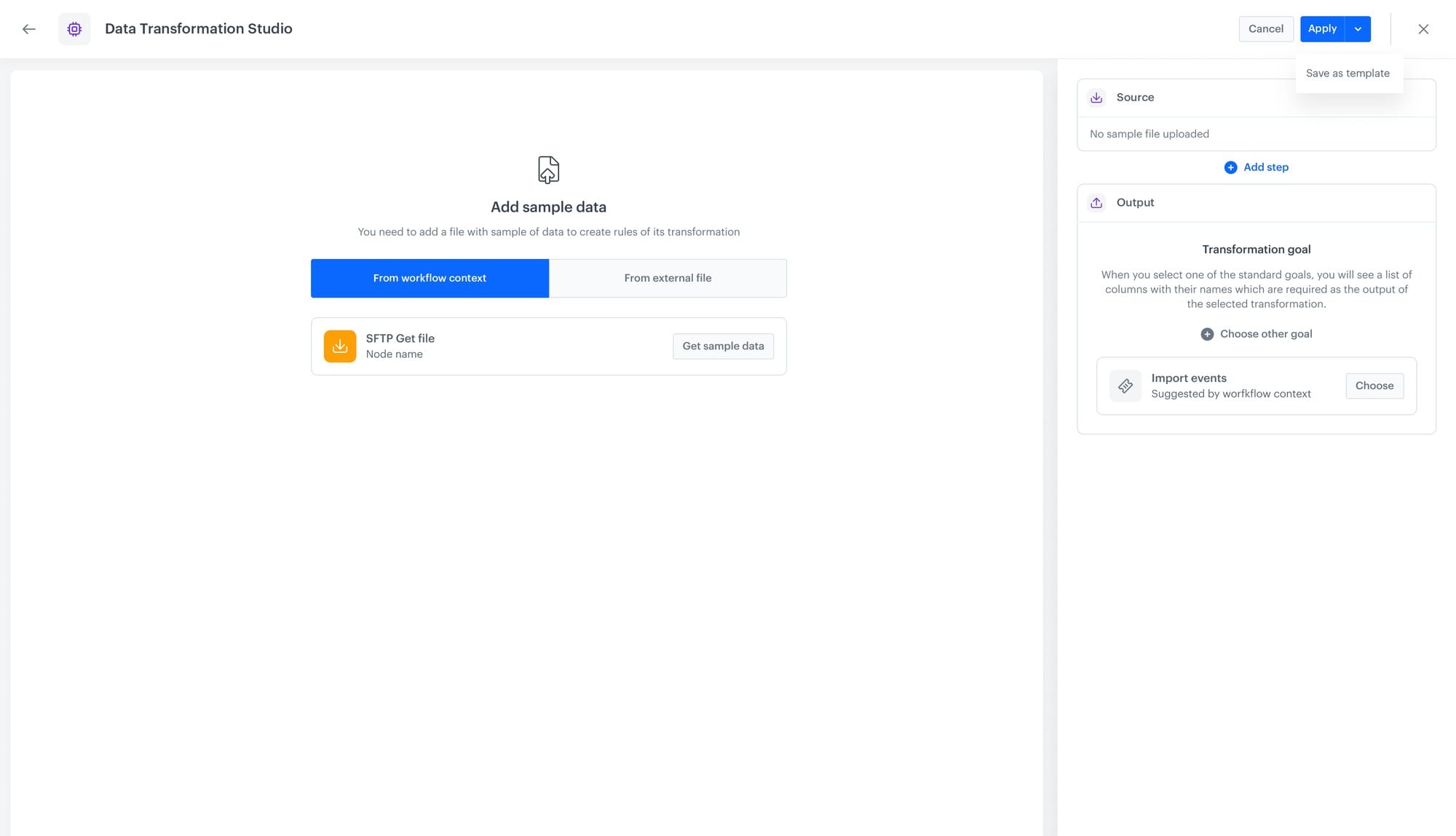
Open the Data Transformation node in an automation workflow and select New transformation. Your sample comes straight from the data source node connected before it: one click, and the data is ready to work on, with no file to export or upload. The rule sits between the node that brings the data in and the nodes that use it next. Keep it in that node only, or save it to the library for other automation workflows.
Work on a sample and see every change
The Source and Output views stay at hand the whole time you work. Every rule you add shows its result straight away, so you see each change in real time and know exactly what your data will look like before the rule runs in the workflow.
Start from a suggested goal and see what's missing
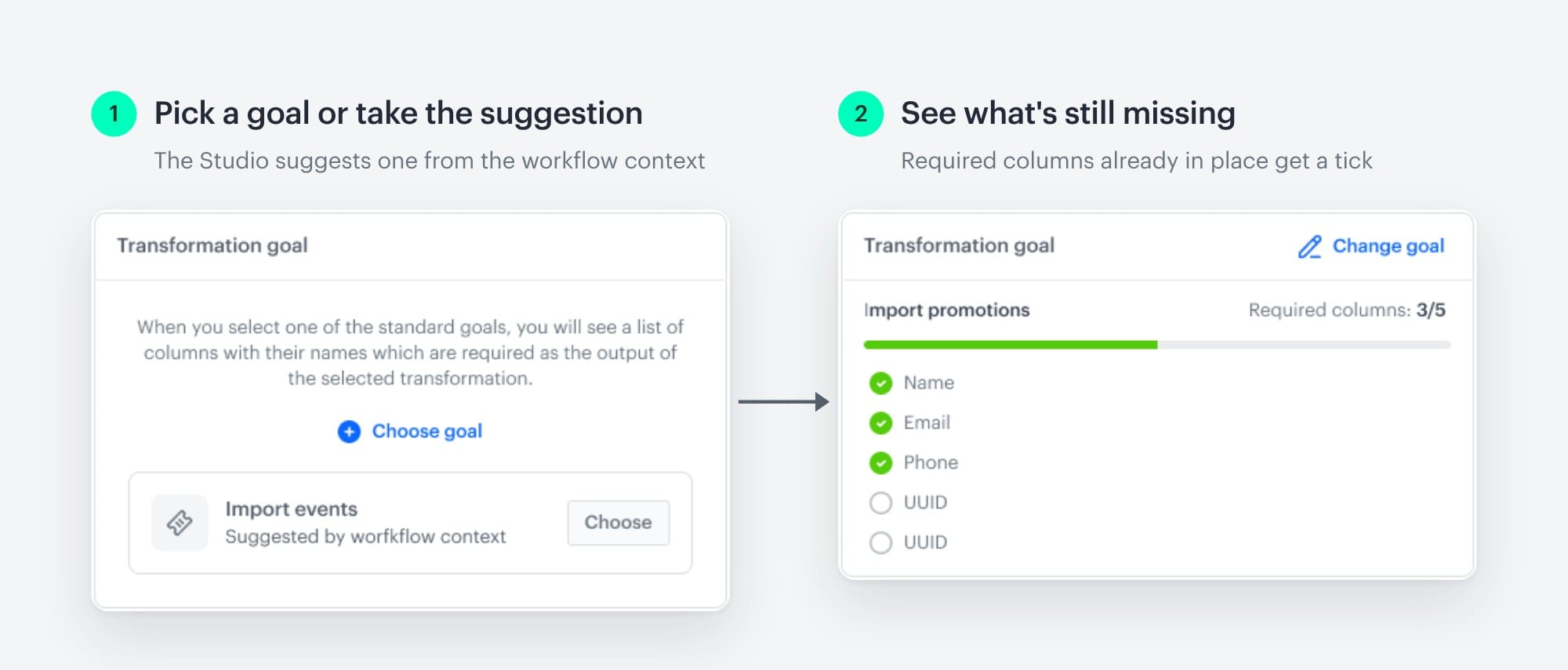
The Studio now suggests a transformation goal automatically based on your workflow's context, so you start from one that fits. Keep it or pick another, such as 'Import transactions' or 'Import profiles'. Data output then lists the required columns and ticks off the ones you already have.
Familiar transformations, redesigned
All the transformations you know from Data Transformation are still here, with a new design that makes building rules simpler and more intuitive. They fall into two groups: column actions shape the structure of your data, and value actions clean and protect its content, from editing and filtering values to encryption. Steps can be edited, reordered by drag, duplicated and deleted, each with its own error handling.
Not every transformation needs to be a template
Some transformations are one-offs, and that's fine. Build them inline, right in the workflow that needs them, and they stay there: no extra template to name, file away or maintain, and a library that holds only the rules worth sharing. Changed your mind? Turn any inline transformation into a template whenever you like, and it's ready for every workflow that comes next.
Reuse the rules you've already built
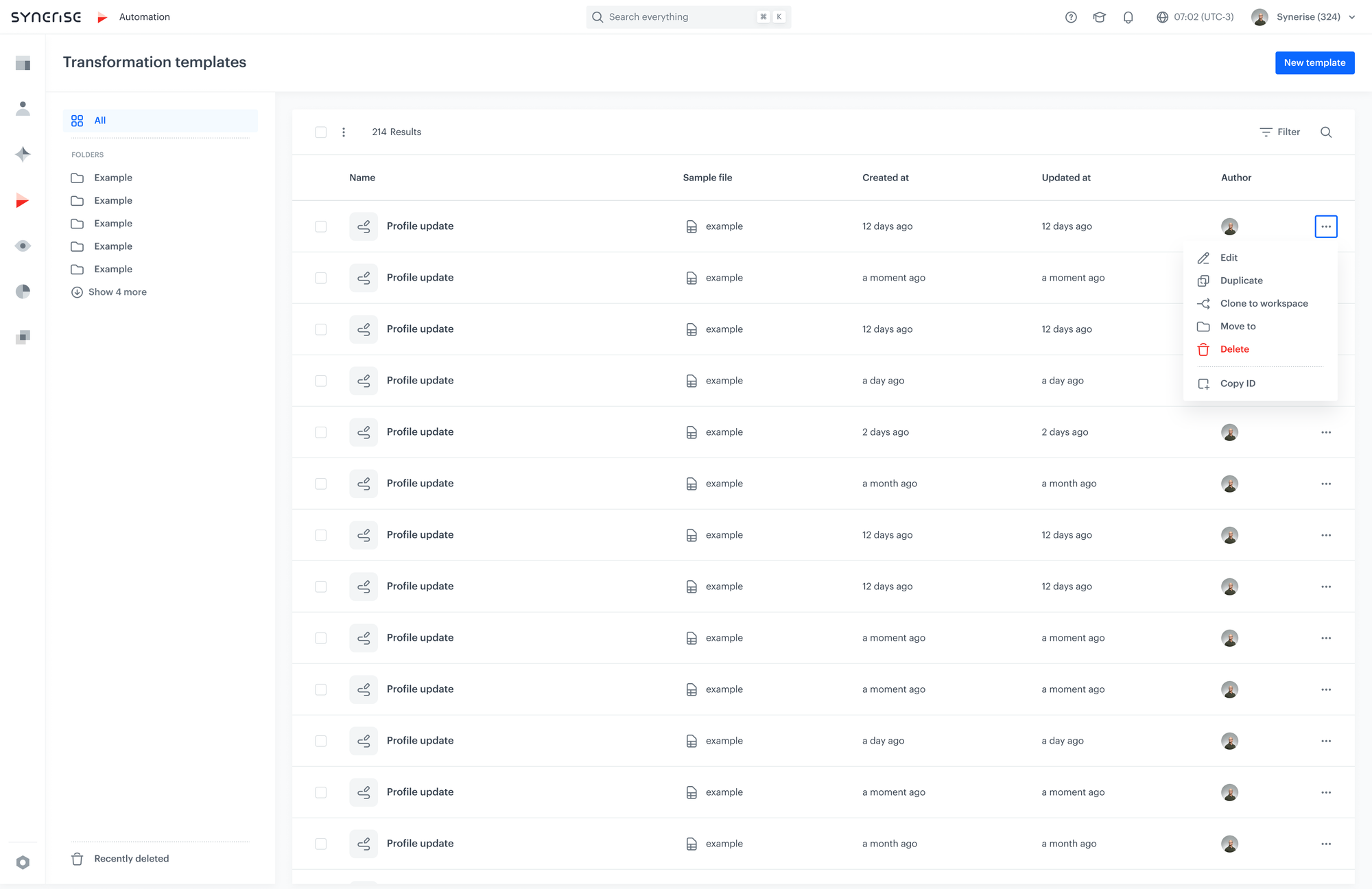
Save a transformation rule as an object, give it a name and a folder, and it appears in Automation Hub > Transformations for any automation workflow to select. All your templates live in one place: update, edit and manage them from a single list.
Authors
"We called it a Studio on purpose. A studio is somewhere you work, with the data in front of you, inside the workflow that needs it. Save what you build as a template when the logic deserves a life of its own, or leave it inline when it doesn't."
Kamil Gaczoł, Senior Product Manager
Release note contributors: Aleksandra Wyszkowska (Product Marketing Manager), Kamil Gaczoł (Senior Product Manager).
Transformation Studio in the docs
Read the documentation for the full setup:
FAQ
How is Data Transformation Studio different from Data Transformation?
Data Transformation Studio is Data Transformation, fully redesigned and built into automation workflows. Sample data comes from the data source node in one click, the goal is suggested from the workflow context, and familiar transformations have a new, simpler design. Rules built in the previous editor stay available and in use.
Can Data Transformation Studio prepare data for channels outside Synerise?
Yes. Alongside imports of profiles, transactions, vouchers and events, transformation goals cover Google Ads customer lists and Facebook Custom Audience, so one rule can target an import into Synerise or an export to external tools.
Where do I build a transformation rule?
In the Data Transformation Studio node inside an automation workflow, or in Automation Hub > Transformations. When you build it in a workflow, the sample comes from the data source node in one click.
Are my existing Data Transformation rules still available?
Yes. All your transformation rules are still in the Transformations library. Browse them in Automation Hub > Transformations, or straight from Data Transformation Studio by selecting Templates library.
Can I edit a transformation rule in a running workflow?
No. A transformation can be edited only while the workflow is in draft status. This protects data integrity and keeps every transformation run deterministic through to completion.
Can the same transformation feed both an import and an export?
Yes. A transformation goal targets an import into Synerise or an export to external tools, and a rule saved to the library can be selected by any automation workflow that needs it.
Key facts
| Attribute | Value |
|---|---|
| Feature | Data Transformation Studio (redesigned Data Transformation) |
| Hub | Automation Hub |
| Purpose | Build transformation rules that clean and shape data for import into Synerise or export to external tools |
| Where | Data Transformation node in the Workflow builder; Automation Hub > Transformations |
| Data input | Sample pulled in one click from the data source node, or an uploaded file; up to 500 rows; tabular CSV and schemaless XML feed, JSONL, JSON |
| Transformation steps | Column actions (add, remove, enrich with catalog, merge, rename, reorder) and value actions (edit values, filter rows, regex replace, encrypt, decrypt) |
| Output goals | Optional, suggested automatically from the workflow context: imports of profiles, transactions, vouchers and events; promotions; Google Ads customer lists; Facebook Custom Audience |
| Error handling | Per step: skip row, skip if null or empty, stop transformation, insert null, insert empty string |
| Reuse | Save as object to the Transformations library; access settings per transformation |
| Availability | All workspaces, no setup required. Transformations built in the previous editor stay available and in use. |